## Workflow
How to Paste Formatted Markdown into Gmail, Outlook, and Docs
Published March 2026
You wrote something in Markdown. Now you need it formatted in an email or a document. You don't want to manually reformat it. Here are four ways to solve this.
## Open, copy, paste
The clipboard carries rich text, HTML, and plain text
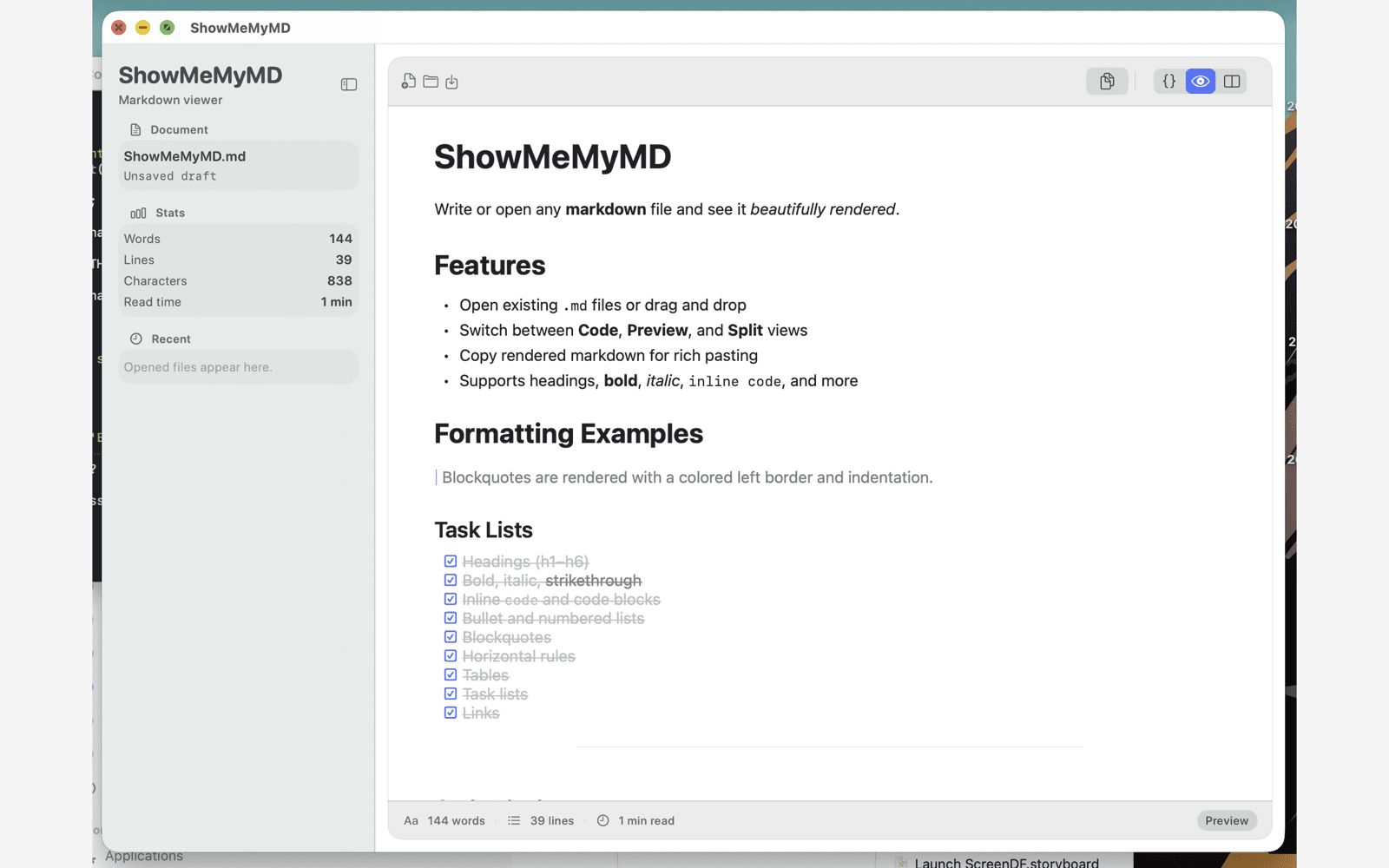
ShowMeMyMD writes multiple clipboard formats at once, so Gmail, Outlook, Google Docs, Slack, and Notion can pick the format they understand best.
- 1. Open a local Markdown file.
- 2. Choose Copy Rendered from the toolbar menu.
- 3. Paste with Cmd+V into your email or document.
## The Problem
Markdown is great — until you need to send it
You draft everything in Markdown. Release notes, project updates, meeting recaps, documentation. The writing is clean. The formatting is perfect.
Then someone asks you to paste it into Gmail. Or Outlook. Or a Google Doc. Or Slack.
And suddenly your beautifully structured document is a wall of raw ## symbols, **asterisks**, and - [ ] checkboxes that nobody can read. You need a way to convert Markdown to rich text — fast.
## Method 1
Markdown Here (browser extension)
Write raw Markdown directly in Gmail's compose window, then click the Markdown Here extension icon to render it in place.
Pros
- Works inside the browser, no separate app
Cons
- Chrome-only (no Safari, limited Firefox support)
- Requires installing and trusting a browser extension
- Doesn't work in all email clients or compose windows
- Can break formatting unpredictably with complex Markdown
- You have to write Markdown inside the email — can't use your existing
.mdfiles
## Method 2
pandoc (CLI)
pandoc README.md -o output.html
open output.html
# Select all → Copy → Paste into Gmail
pandoc is the Swiss Army knife of document conversion. It can turn Markdown into HTML, PDF, DOCX, and dozens of other formats.
Pros
- Extremely powerful, supports many output formats
- Can produce Word docs directly
Cons
- Requires terminal and Homebrew/pip install
- Multi-step workflow: convert, open browser, select all, copy, paste
- Overkill when all you want is "paste into email"
## Method 3
Online converters
Sites like markdowntohtml.com and dillinger.io let you paste raw Markdown into a text area, then copy the rendered HTML output.
Pros
- No install required, works in any browser
Cons
- Privacy concern — you're pasting your content into a third-party website
- Formatting inconsistency across different converters
- Extra steps: open browser, navigate to site, paste, copy result, paste again
- No support for your local
.mdfiles — you have to copy-paste the raw text in
## Method 4 (Recommended)
ShowMeMyMD — one click
Open your .md file in ShowMeMyMD. The rendered preview appears instantly. Click "Copy Rendered" and paste into whatever app you need. One click. Native. Private — nothing leaves your Mac.
Works with:
Headers become headers. Bold stays bold. Code blocks stay formatted. Tables paste as tables. No re-styling, no manual cleanup.
## Step by Step
The workflow with ShowMeMyMD
- 1. Open your file. Double-click any
.mdfile in Finder. ShowMeMyMD renders it instantly. - 2. Click "Copy Rendered". One button in the toolbar. The formatted content is now on your clipboard as rich text.
- 3. Paste.
Cmd + Vinto Gmail, Outlook, Google Docs, Slack, Notion, Confluence, Jira, or any app that accepts rich text. - 4. Done. Your formatting is preserved. Headers, bold, lists, code blocks, tables — all intact.
No browser extension. No CLI. No third-party website. No multi-step conversion pipeline. Open, click, paste.
## Keep Reading
Learn more about the Copy Rendered feature in ShowMeMyMD. See why it's the best Markdown viewer for Mac. Or read our app-specific guides for Gmail, Outlook, Slack, Notion, and Google Docs.
Write in Markdown. Paste it anywhere.
Open any .md file, click Copy Rendered, paste into Gmail, Outlook, Docs, Slack, or Notion. $2.99 on the Mac App Store.