## Workflow
How to Paste Markdown into Outlook Email — Formatted, One Click
Published March 2026
You wrote something in Markdown. Now you need to send it as an Outlook email with all the formatting intact. No add-ins, no command-line tools, no web converters. Here's how.
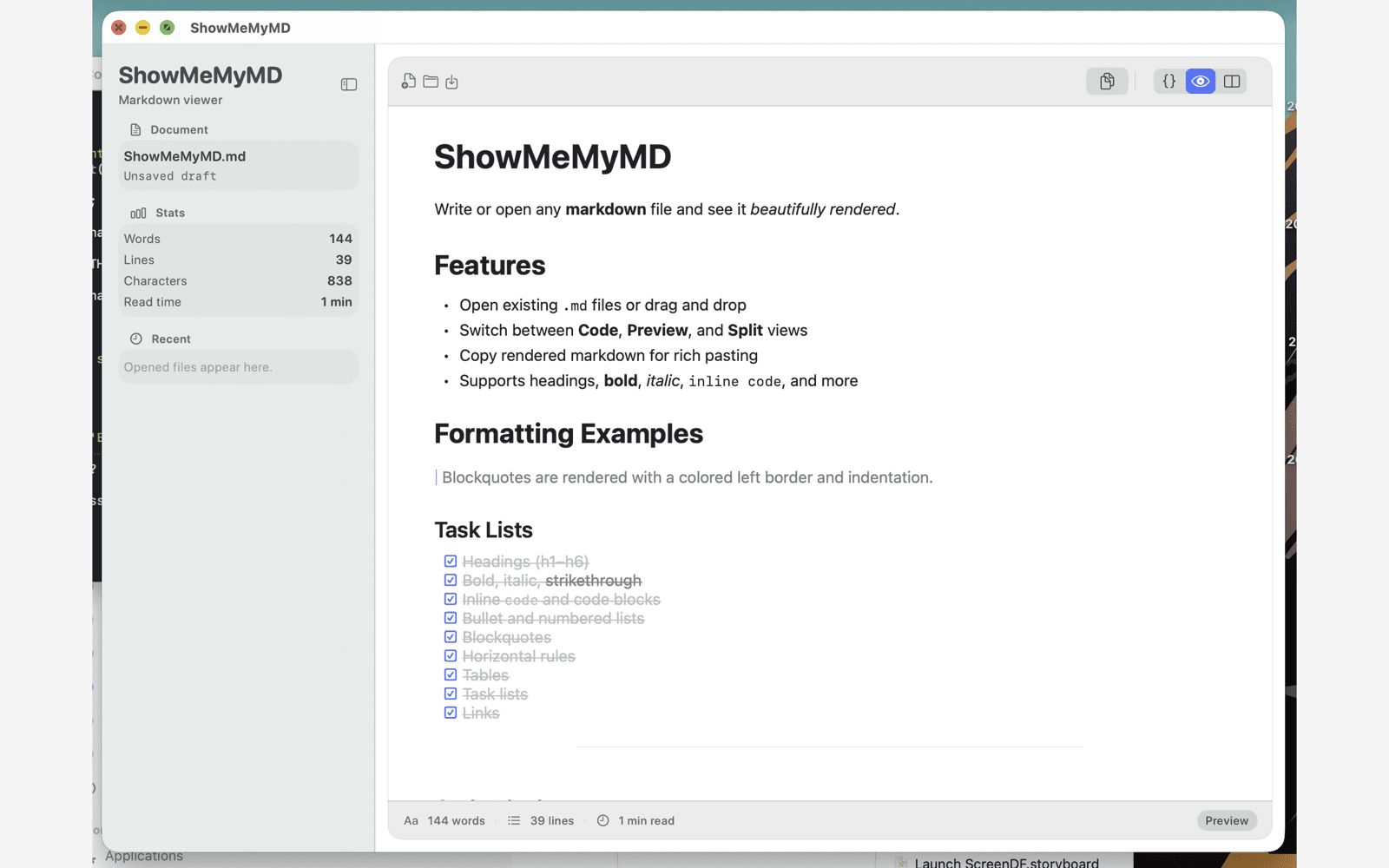
## Outlook-friendly copy
Copy Rendered gives Outlook formatted content
The app places rich text, HTML, and plain text on the clipboard. Outlook can paste the formatted version while plain-text apps still receive readable content.
- 1. Open the Markdown file in ShowMeMyMD.
- 2. Choose Copy Rendered from the toolbar menu.
- 3. Paste into Outlook with regular Cmd+V.
## The Problem
Outlook doesn't understand Markdown
You draft project updates, status reports, or technical documentation in Markdown. The structure is clean. Then you paste it into Outlook and get a wall of raw ## symbols, **asterisks**, and broken formatting that colleagues can't read.
Outlook expects rich text — HTML under the hood. You need to convert your Markdown to formatted rich text before pasting.
## Method 1
Online converters
Sites like markdowntohtml.com let you paste raw Markdown, then copy the rendered HTML output to paste into Outlook.
Pros
- No install required, works in any browser
Cons
- Privacy concern — you're pasting content into a third-party website
- Extra steps: open site, paste, copy result, paste again
- No support for your local
.mdfiles - Formatting may not match what Outlook expects
## Method 2
pandoc (CLI)
pandoc report.md -o output.html
open output.html
# Select all → Copy → Paste into Outlook
pandoc converts Markdown to HTML. You open the result in a browser, select all, copy, and paste into Outlook's compose window.
Pros
- Powerful, supports many output formats including DOCX
Cons
- Requires terminal and Homebrew/pip install
- Multi-step: convert, open, select, copy, paste
- Overkill when all you want is "paste into Outlook"
## Method 3 (Recommended)
ShowMeMyMD — one click
Open your .md file in ShowMeMyMD. Click "Copy Rendered" and paste directly into Outlook. One click. Native. Private — nothing leaves your Mac.
What gets preserved in Outlook:
- Headers with proper sizing
- Bold, italic, and inline code
- Ordered and unordered lists
- Code blocks with syntax highlighting
- Tables with alignment
- Links (clickable in Outlook)
Outlook receives clean rich text. No raw Markdown symbols, no broken formatting. Your email looks professional.
## Step by Step
Three steps to formatted Markdown in Outlook
- 1. Open your file. Double-click any
.mdfile in Finder. ShowMeMyMD renders it instantly. - 2. Click "Copy Rendered". One button in the toolbar. The formatted content is now on your clipboard as rich text.
- 3. Paste into Outlook.
Cmd + Vin Outlook's compose window. Your formatting is preserved — headers, bold, lists, code blocks, tables.
No add-in. No CLI. No third-party website. Open, click, paste into Outlook.
## Tips
Outlook-specific tips
- Works with Outlook for Mac and Outlook on the web. The rich text clipboard format is understood by both versions.
- Use Cmd+V, not Cmd+Shift+V. Regular paste preserves rich text formatting. Shift+V pastes as plain text.
- Tables work in Outlook. Unlike some email clients, Outlook handles HTML tables well. Your Markdown tables paste as properly formatted tables.
- Also works everywhere else. The same workflow works for pasting into Gmail, Slack, Notion, Google Docs, and more.
## Keep Reading
Learn more about the Copy Rendered feature in ShowMeMyMD. Read our full guide to pasting Markdown into any email client. Or see how to paste Markdown into Gmail.
Write in Markdown. Paste it into Outlook.
Open any .md file, click Copy Rendered, paste into Outlook. Headers, bold, code blocks, tables — all preserved. $2.99 on the Mac App Store.