Published March 2026
How to Open .md Files on Mac
You downloaded a file that ends in .md and macOS has no idea what to do with it. Double-click it and you get TextEdit showing a wall of hashtags, asterisks, and backticks. Not helpful.
Here are four ways to open Markdown files on Mac, from the bare minimum to the best experience.
## Fastest path
Install once, then double-click Markdown files
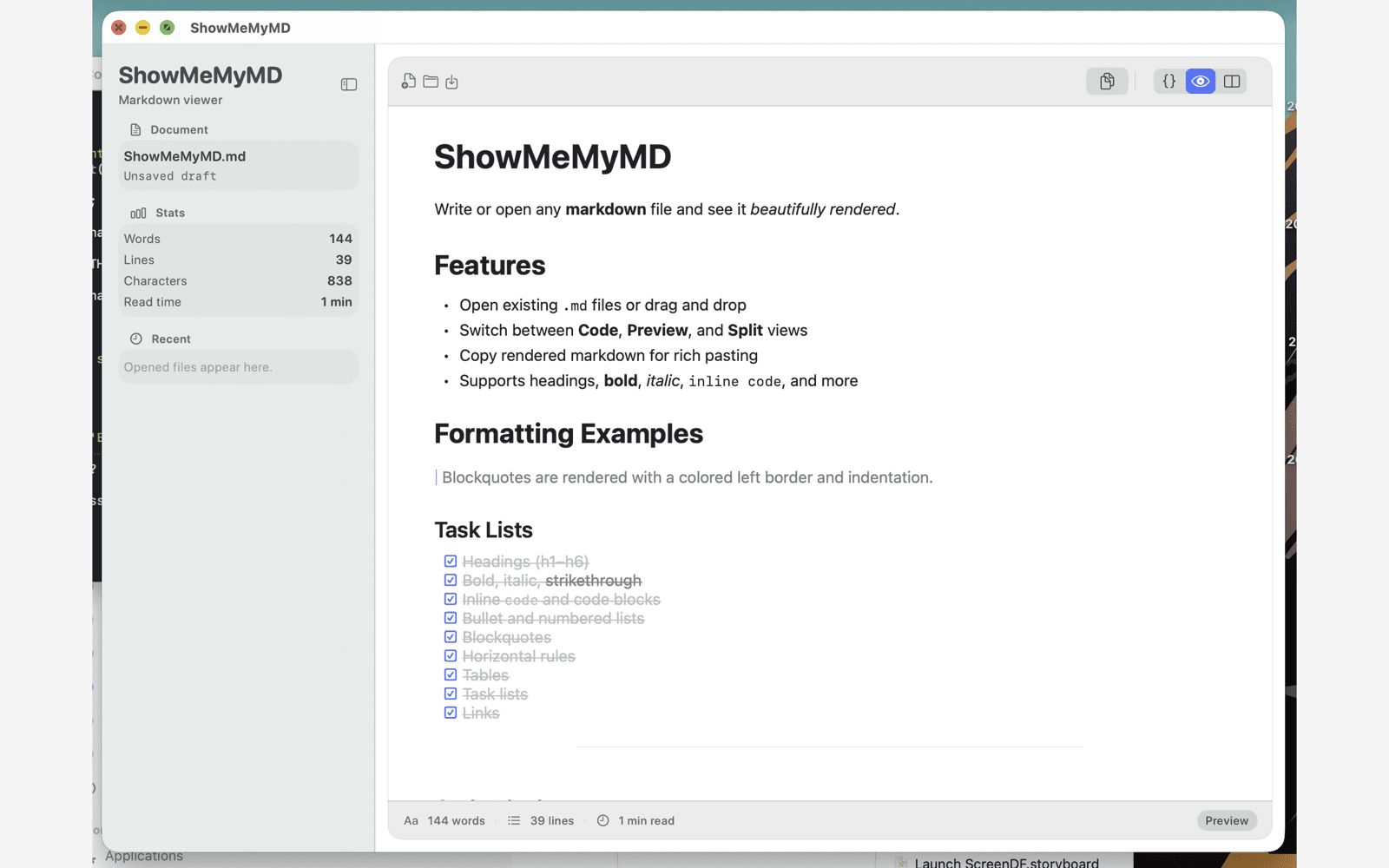
ShowMeMyMD opens local .md files directly from Finder, remembers recent files, and warns before replacing unsaved edits.
- 1. Download ShowMeMyMD from the Mac App Store.
- 2. Open or drag in a Markdown file.
- 3. Optional: set it as the default .md app in Finder.
## Method 1
TextEdit — It Opens, But That’s About It
TextEdit is already on your Mac, so it’s the path of least resistance. Right-click any .md file, choose Open With > TextEdit, and you’ll see… the raw Markdown source.
That means # Heading stays as a literal hashtag and the word “Heading.” Bold text shows up as **like this** instead of like this. Code blocks are just indented plain text with no highlighting.
Verdict
Technically works. Practically useless if you want to actually read the document the way the author intended.
## Method 2
VS Code Preview — Overkill, But It Works
If you already have Visual Studio Code installed, it has a built-in Markdown preview. Open your .md file, then press Cmd+Shift+V to open the preview pane.
The rendering is decent. You get headings, bold, links, and basic code highlighting. But you just launched a full IDE — with its extensions, sidebars, terminals, and a half-second startup time — to read a README file.
Verdict
Good rendering. Absurd overhead if you just want to view a file. Like driving a semi-truck to the corner store.
## Method 3
Quick Look Extensions — Close, But Limited
macOS Quick Look (press Space on a file in Finder) doesn’t render Markdown out of the box. But you can install a plugin like QLMarkdown to add support.
Once installed, selecting a .md file and pressing Space will show a rendered preview right in Finder. It’s quick and convenient for a glance.
The downsides: rendering is basic, there are no themes or dark mode options, syntax highlighting in code blocks is minimal or non-existent, and you can’t copy the rendered output as rich text. It’s a peek, not a proper viewer.
Verdict
Great for a quick glance. Falls short if you need proper rendering, themes, or rich text copy.
## Method 4 (Recommended)
ShowMeMyMD — The One That Just Works
ShowMeMyMD is a native macOS app built for exactly this: opening and viewing Markdown files. Double-click a .md file and it renders instantly.
Instant rendering
Open any .md file and see it beautifully rendered with headings, lists, tables, blockquotes, and callouts.
Syntax highlighting
20+ languages highlighted in fenced code blocks. Code actually looks like code.
Themes
System, Sepia, Nord, and Solarized. Dark and light modes follow your Mac preferences.
Copy as rich text
One click copies rendered Markdown as rich text. Paste into emails, Docs, Notion, or Slack.
Verdict
Native. Fast. $2.99 one-time. Does exactly what it says and nothing it doesn’t.
## Bonus
Set ShowMeMyMD as Your Default .md App
Once you’ve installed ShowMeMyMD, you can make every .md file open with it automatically. Here’s how:
- 01
Find any
.mdfile in Finder and right-click it. - 02
Click Get Info (or press Cmd+I).
- 03
Under Open With, select ShowMeMyMD from the dropdown.
- 04
Click Change All… to apply this to every
.mdfile on your Mac.
That’s it. Every Markdown file now double-clicks straight into a rendered view. For more details, see our guide on setting the default app for .md files on Mac.
## Keep reading
- ShowMeMyMD: Markdown Viewer for Mac — full feature overview
- What Is a .md File? — a plain-English guide to Markdown
- How to Set the Default App for .md Files on Mac — step-by-step walkthrough
Stop squinting at raw Markdown
$2.99. One-time purchase. No subscription. No account.
Download on theMac App Store